

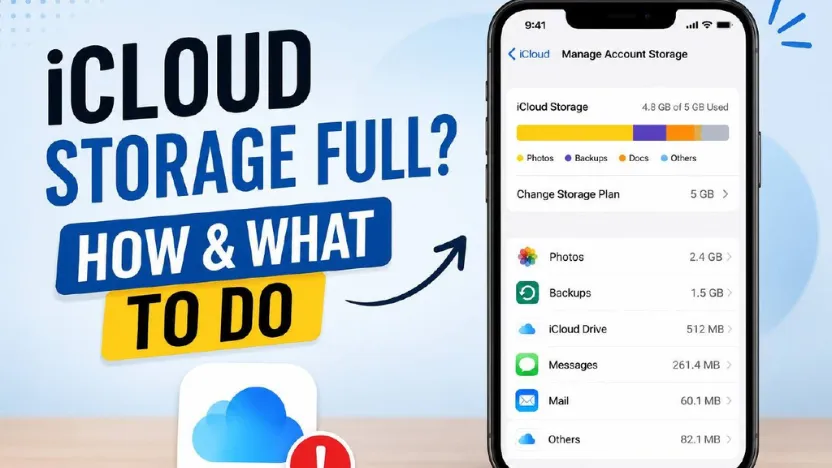
If you've received the dreaded "iCloud Storage Full" notification, your first instinct might be to purchase additional storage. However, before upgrading your plan, there are several simple ways to free up valuable space using tools already built into your iPhone.
Here's a step-by-step guide to help you reclaim your iCloud storage.
1. Check what's taking up your storage
Start by reviewing your iCloud storage usage.
Go to:
Settings > [Your Name] > iCloud > Manage Account Storage
This section provides a detailed breakdown of what's using your storage, whether it's photos, backups, messages or app data. Identifying the biggest storage users makes it easier to know where to begin.
2. Delete old device backups
If you've upgraded to a new iPhone over the years, your iCloud account may still be storing backups from devices you no longer own.
Open the Backups section and remove any outdated device backups that are no longer needed. This can instantly free up several gigabytes of storage.
3. Turn on "Optimize iPhone Storage"
Photos often take up the largest portion of your storage. To reduce the amount of space used on your device, go to:
Settings > Photos
Enable "Optimize iPhone Storage."
This feature keeps smaller, space-saving versions of your photos on your iPhone while securely storing the original, full-resolution images in iCloud.
4. Remove duplicate photos and unwanted screenshots
The Photos app includes built-in tools to help clean up your photo library. Open the Photos app and scroll to the Utilities section.
- Merge duplicate photos using the Duplicates folder.
- Delete unnecessary screenshots.
- Remember to empty the Recently Deleted album to permanently remove the files and recover storage space.
5. Delete large Email attachments
Email attachments such as PDFs, videos and presentations can quietly consume storage over time.
Open the Mail app and search for emails with attachments. Delete conversations that are no longer needed, then empty the Trash folder to permanently remove them.
6. Remove Unused App Data
Some apps continue storing documents and data long after you've stopped using them.
Go to:
Settings > General > iPhone Storage
Review each app individually and remove apps or data you no longer need. Old games and unused utility apps are often among the biggest storage consumers.
7. Manage What Gets Backed Up to iCloud
Not every app needs to be included in your iCloud backup.
Navigate to:
Settings > [Your Name] > iCloud > iCloud Backup
Review the list of apps included in your backup and disable cloud backups for apps that can easily be reinstalled, such as streaming services, games or other third-party applications.
This helps reduce the overall size of future backups.
8. Review large files in iCloud Drive
Open the Files app and access your iCloud Drive.
Sort files by size instead of date to quickly identify large downloads, ZIP files, videos or documents that are no longer needed. Deleting these files can free up a significant amount of cloud storage.
Before paying for additional iCloud storage, it's worth spending a few minutes reviewing your files and backups. In many cases, removing unnecessary data is enough to recover several gigabytes of storage and delay or even eliminate the need for a paid upgrade.
Regularly managing your storage not only keeps your iPhone running efficiently but also helps you make the most of the storage space you already have.
Source : Grema Yahaya Alhaji's Post